2026-09-10 · 7 min read
ProPresenter Live Translation: How to Show Translated Text in Your Slides
Setting up a live translated caption feed inside ProPresenter using a web-based item, with layout patterns and options for other presentation software.
By Josh Stannard, founder of Voco
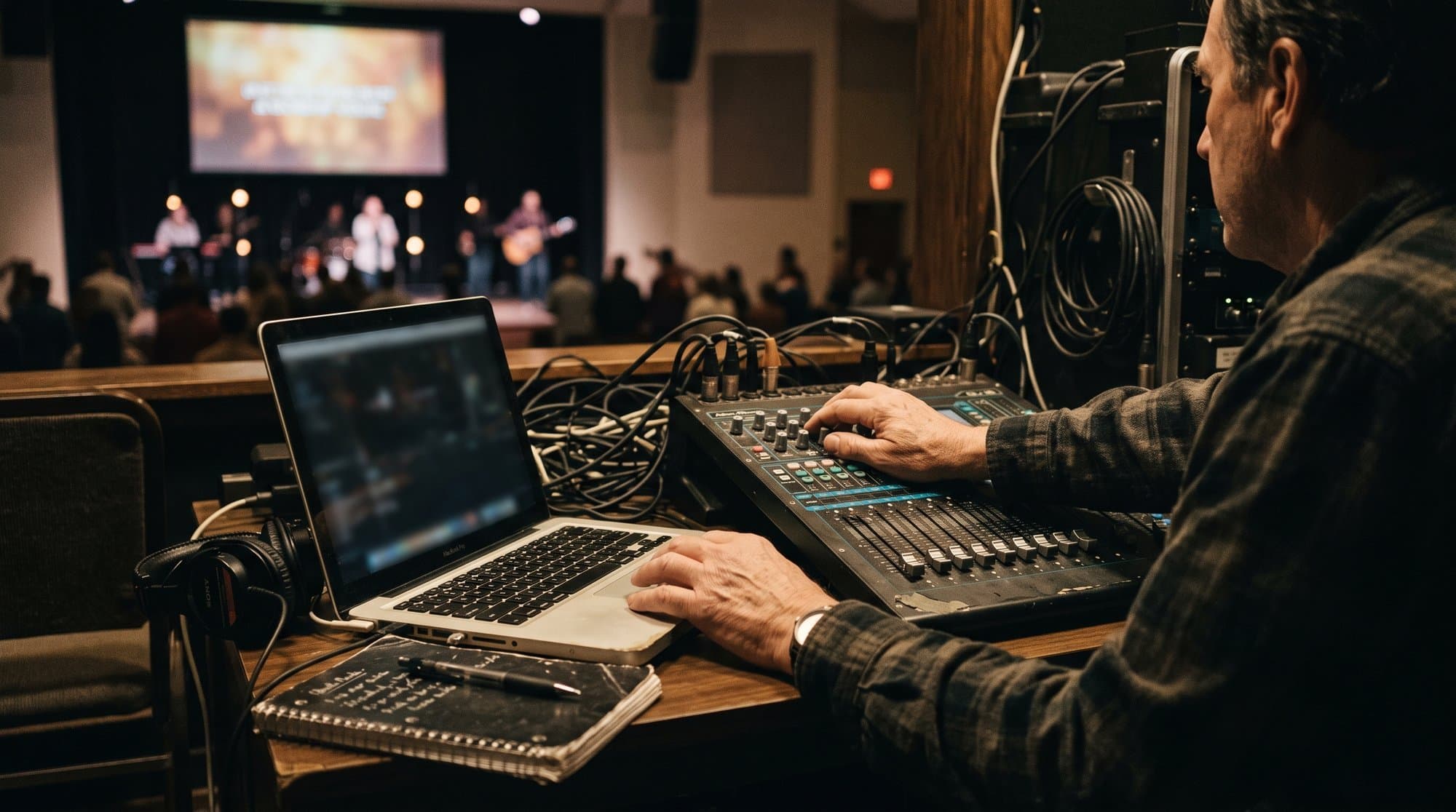
Voco's ProPresenter page is one of the only pages on the whole site that's already earned a click from Google, at a position where almost nothing gets clicked. Somebody out there is searching for exactly this, mid-week, probably after a Sunday where a visiting family sat through a sermon they couldn't follow. This is the answer to that search.
ProPresenter doesn't translate anything on its own. What it has, and has had for years, is a way to display a live webpage inside a slide, and a live translation feed is just a webpage that happens to update in real time. This guide covers setting that up, the layout choices that actually work in a worship service, and what to do if your church runs EasyWorship, Proclaim or vMix instead.
What ProPresenter can and can't do natively
ProPresenter has no built-in translation or speech-to-text engine. It's presentation software: it shows slides, lyrics, and media, and it does that extremely well, but translating spoken sermon audio into another language isn't a feature it has ever tried to have.
What ProPresenter does have is a web content item, sometimes added as a Prop, sometimes added directly to a slide, that embeds a live webpage inside your presentation output. This has been part of ProPresenter for a long time and is the same mechanism churches already use for things like live scoreboards or social media walls. Live translation display uses exactly the same feature, pointed at a different kind of webpage: one showing live-updating translated or captioned text instead of a score or a tweet.
In other words, ProPresenter is the display layer, not the translation engine. You need a separate live captioning or translation tool to generate the text; ProPresenter just shows it, cleanly, inside your existing slide deck, so the operator doesn't need to run a second piece of software visible to the congregation.
The web-item method: step-by-step
Step 1: Get a live caption/translation URL from your translation tool. Sign into whatever live captioning or translation service you're using, choose your target language, and copy the link it gives you for embedding, sometimes called a display link, overlay URL, or caption view link.
[SCREENSHOT: translation tool dashboard with language selector and "copy link" button highlighted]
Step 2: Create a Prop in ProPresenter (recommended over a single slide). In ProPresenter, open the Props Editor and create a new prop. Give it a clear label, "Translation" or "Captions." Props are the better choice over editing a single slide because a prop persists across your whole set list and can be toggled on or off independently of whatever slide is currently showing, which matters because a sermon runs across dozens of slides, not one.
[SCREENSHOT: ProPresenter Props Editor with a new prop being created and labelled "Captions"]
Step 3: Add a Web item to the prop. Inside the prop editor, click the + icon and choose Web (sometimes labelled Web Fill or Web Object depending on your ProPresenter version). This inserts a web content block onto the prop's canvas.
[SCREENSHOT: ProPresenter prop editor showing the + menu with "Web" selected]
Step 4: Resize the web item and paste your URL. Drag the corner of the web block to size it, full screen if you're using a dedicated confidence-style display, or a lower strip if it's going to sit over the worship background. In the right-hand sidebar, paste the caption or translation link into the URL field below the Web dropdown. Give it a moment; the live feed will load and start updating.
[SCREENSHOT: ProPresenter sidebar showing the URL field populated, web block resized to a lower-third strip on the canvas]
Step 5: Load the prop layer during the service. With the prop set up, your operator loads it onto the live output by clicking the prop's layer, the same way they'd bring in any other prop or lower third. It stays live and updating across every subsequent slide until it's cleared.
[SCREENSHOT: ProPresenter live output showing the translation prop overlaying a worship slide, text updating]
A note on testing. Most caption and translation tools let you append a test parameter to the URL to force placeholder text on screen, useful for checking sizing and position without needing live audio running. Remove it before the service starts, and separately confirm the translation tool itself is switched to "live" on its own dashboard. This is the step people forget: the ProPresenter prop can be flawlessly configured and still show a blank box if the translation service hasn't been started on its end.
A note on ProPresenter versions
The exact menu names have shifted slightly across ProPresenter releases, which trips people up more than the actual mechanics do. Older versions on Windows had a separate Media Browser that behaved differently from the Mac build, and the web content feature itself has been labelled "Web View," "Web Fill" and "Web Object" depending on version and platform. If your menu doesn't say exactly what's pictured above, look for anything with "Web" in the name inside the item or prop creation menu; the underlying feature, embedding a live webpage as a display layer, has been stable even where the label hasn't been. Renewed Vision's own support documentation is the reliable source for your specific version if the interface doesn't match.
Layout patterns that actually work
Lower third. The most common choice, and usually the right default: a strip across the bottom third of the screen, tall enough to read from the back row, not so tall it covers the speaker or worship visuals behind it. Works well for a congregation that's mostly following along in their first language and occasionally checking translated text.
Side panel. A vertical strip down one side of the screen, better suited to venues with a wide format screen or a dedicated second screen, and better for longer chunks of text since it doesn't compete with a lower-third graphic that might already be showing song credits or scripture references.
Confidence monitor for the interpreter. If your church also uses a human interpreter alongside displayed text, a small dedicated monitor facing the interpreter, showing the same live feed, lets them see what's being displayed to the congregation without turning around, useful for keeping their own delivery in sync with what's on screen.
Whichever layout, keep text large enough to read from the back row on a phone-sized display equivalent, and test it standing at the back of the room, not from the operator's booth where everything looks bigger than it will to the congregation.
Worth deciding upfront: does the translated text need to be visible to the whole room, or only to the people who need it? A lower third or side panel shows translated text to everyone, which some churches like because it visibly signals "we're a multilingual church" to every visitor, not just the ones who need the language. Others prefer the opposite: display nothing on the main screen and let language-specific viewers pick up their own translation via a QR code on their phone, keeping the shared screen focused on worship visuals for everyone else. Neither is more correct. It depends on whether the translation is a visible statement about the church's welcome or a quiet, individual accommodation, and that's a conversation worth having with whoever's actually requesting the translation before defaulting to whichever layout is easiest to set up.
Going multilingual
Because the web item just displays whatever webpage it's pointed at, running two languages at once is a matter of adding a second web item, pointed at a second language's link, positioned in a different part of the screen or shown on an alternate prop for a second display if you have one. If the underlying translation tool generates all its language outputs from one live audio feed, adding a language is a setting change on that tool's side, not a second capture system feeding ProPresenter.
Full disclosure: I built Voco, one of the tools that can generate the web-item link described in this guide. Voco's ProPresenter integration works exactly the way described above, a live translation link you paste into a Web item or Prop, and it runs from the same live audio pipeline as Voco's captions, into 200+ attendee languages, at £12 a week on the Church plan (prices checked August 2026). It's disclosed here because it's the tool built specifically for this workflow, but the steps in this guide apply to any translation service that provides a web-embeddable link, which is most of them by 2026.
Alternatives if you're on EasyWorship, Proclaim or vMix
You don't need ProPresenter for this pattern to work. EasyWorship and Proclaim both support a Web Page content type that behaves the same way: paste a live URL into a slide or item, and it updates on screen in real time. vMix has an equivalent Web Browser input. The menu names differ; the underlying mechanic, a live webpage embedded as a display layer, is identical across all of them. If you're choosing between ProPresenter and EasyWorship for other reasons, voco.church/learn/easyworship-vs-propresenter covers that comparison directly, including how each handles this kind of live web content.
Frequently asked questions
What should churches know about what propresenter can and can't do natively?
ProPresenter has no built-in translation or speech-to-text engine. It's presentation software: it shows slides, lyrics, and media, and it does that extremely well, but translating spoken sermon audio into another language isn't a feature it has ever tried to have.
What should churches know about the web-item method: step-by-step?
Step 1: Get a live caption/translation URL from your translation tool. Sign into whatever live captioning or translation service you're using, choose your target language, and copy the link it gives you for embedding, sometimes called a display link, overlay URL, or caption view link.
What should churches know about a note on propresenter versions?
The exact menu names have shifted slightly across ProPresenter releases, which trips people up more than the actual mechanics do. Older versions on Windows had a separate Media Browser that behaved differently from the Mac build, and the web content feature itself has been labelled "Web View," "Web Fill" and "Web Object" depending on version and platform. If your menu doesn't say exactly what's pictured above, look for anything with "Web" in the name inside the item or prop creation menu; the un
What should churches know about layout patterns that actually work?
Lower third. The most common choice, and usually the right default: a strip across the bottom third of the screen, tall enough to read from the back row, not so tall it covers the speaker or worship visuals behind it. Works well for a congregation that's mostly following along in their first language and occasionally checking translated text.
First published on Medium.