
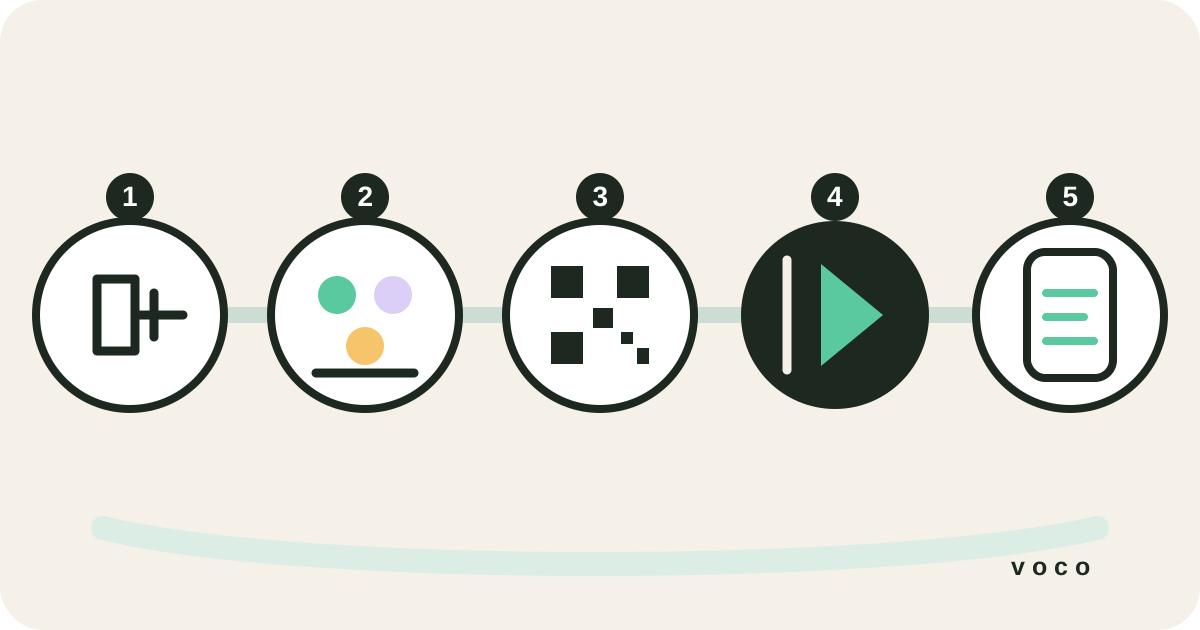
Define what a successful first service looks like
Before comparing equipment or opening a dashboard, name the person and the outcome. A useful first goal is not 'launch multilingual ministry'. It is specific: one Spanish-speaking parent can follow the whole sermon on their own phone; one Deaf attendee can read clear same-language captions; or one visiting family can access the service without asking someone to whisper beside them. That definition determines whether you need translation, captions, hearing support, a human interpreter, or a combination.
- Choose one ordinary service for the first live test, not the busiest event of the year
- Ask a fluent reader in each priority language to review the result
- Decide whether attendees will read on phones, watch a shared screen, or both
- Keep a human route for questions, prayer, safeguarding, and two-way conversation
What you need before you start
The minimum requirements for live church translation are straightforward:
- A laptop or tablet with a modern browser (Chrome, Edge, or Safari)
- A reliable internet connection (wired or strong WiFi)
- An audio source — your phone's built-in mic works for testing; a USB audio interface plugged into your sound desk gives the best accuracy
- A translation service account (Voco offers a 7-day free trial)
Step 1 — Connect your audio
The quality of your audio input directly affects translation accuracy. Voco's speech recognition works best with clean, direct audio from your sound desk. A USB audio interface (such as a Focusrite Scarlett Solo or Behringer UM2) plugged into your laptop gives you a clean feed from the mixing board. If you're testing or don't have a sound desk, your laptop's built-in microphone works for demos — but in a live service, ambient room noise will reduce accuracy.
- 1Plug in your USB audio interfaceConnect it to your laptop and plug an XLR cable from your sound desk's auxiliary or direct out.
- 2Select the audio input in VocoIn the Voco dashboard, choose your audio interface from the input selector before going live.
- 3Run a 30-second sound checkSpeak a few sentences at your normal pace and watch the transcription. If it's accurate, you're ready.
Step 2 — Select your languages
In the Voco dashboard, choose the languages your congregation needs. You can add multiple languages simultaneously — each attendee selects their own preferred language from the QR code interface. Do not infer a language from someone's nationality or appearance. Ask which language they use for sustained teaching and Scripture, whether they prefer a particular script or regional form, and whether they are more comfortable reading or listening. Common first additions include Spanish, Portuguese, Farsi, Mandarin, Tagalog, and Amharic, but the right list is the one your actual congregation requests.
Step 3 — Display the QR code
Once you go live in Voco, you'll get a QR code and a short URL. Display this on your projector screen or include it in your printed bulletin. When attendees scan it on their smartphone, a browser page opens and they select their language — no app download, no account creation. It takes about 20 seconds from scan to reading along.
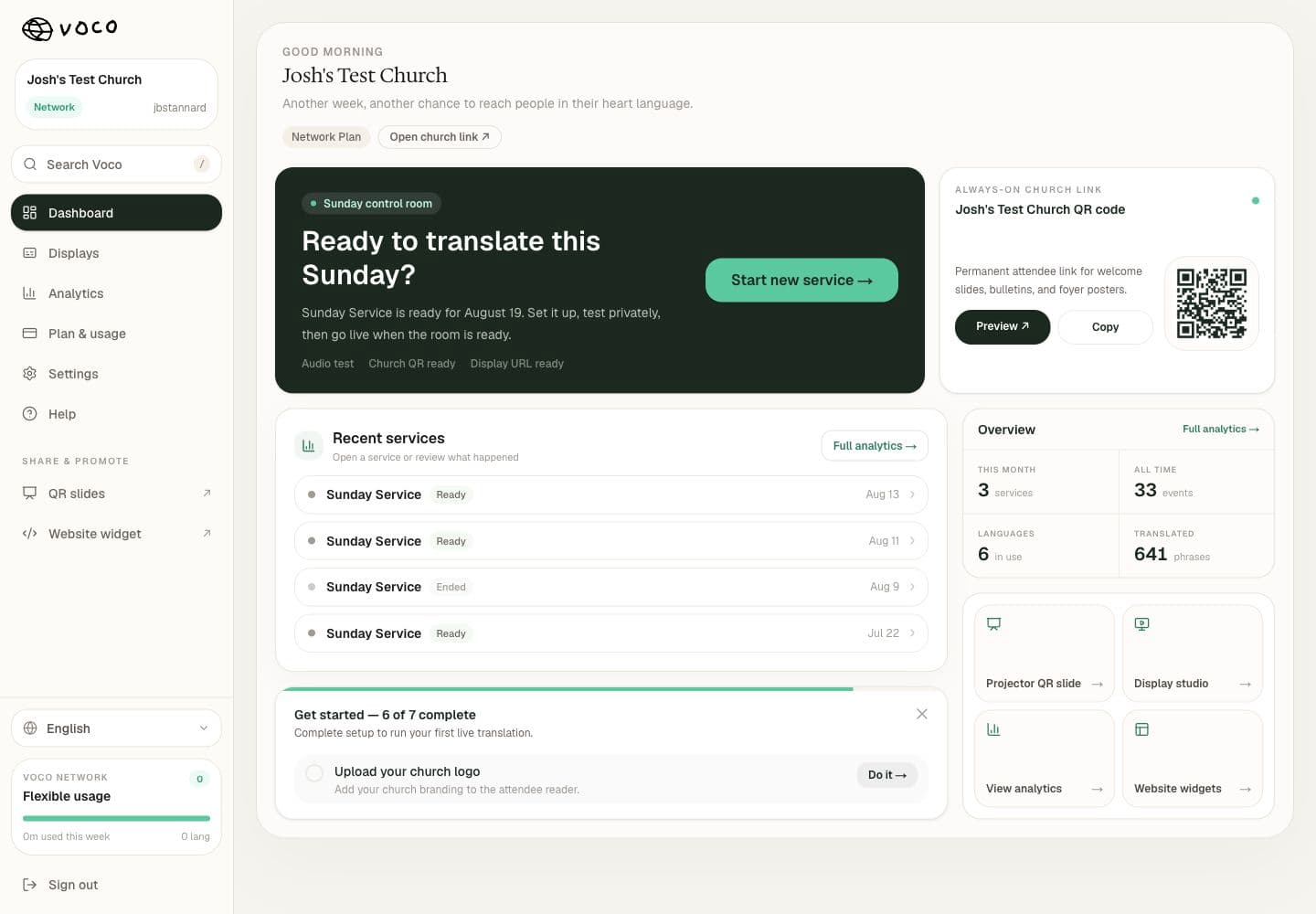
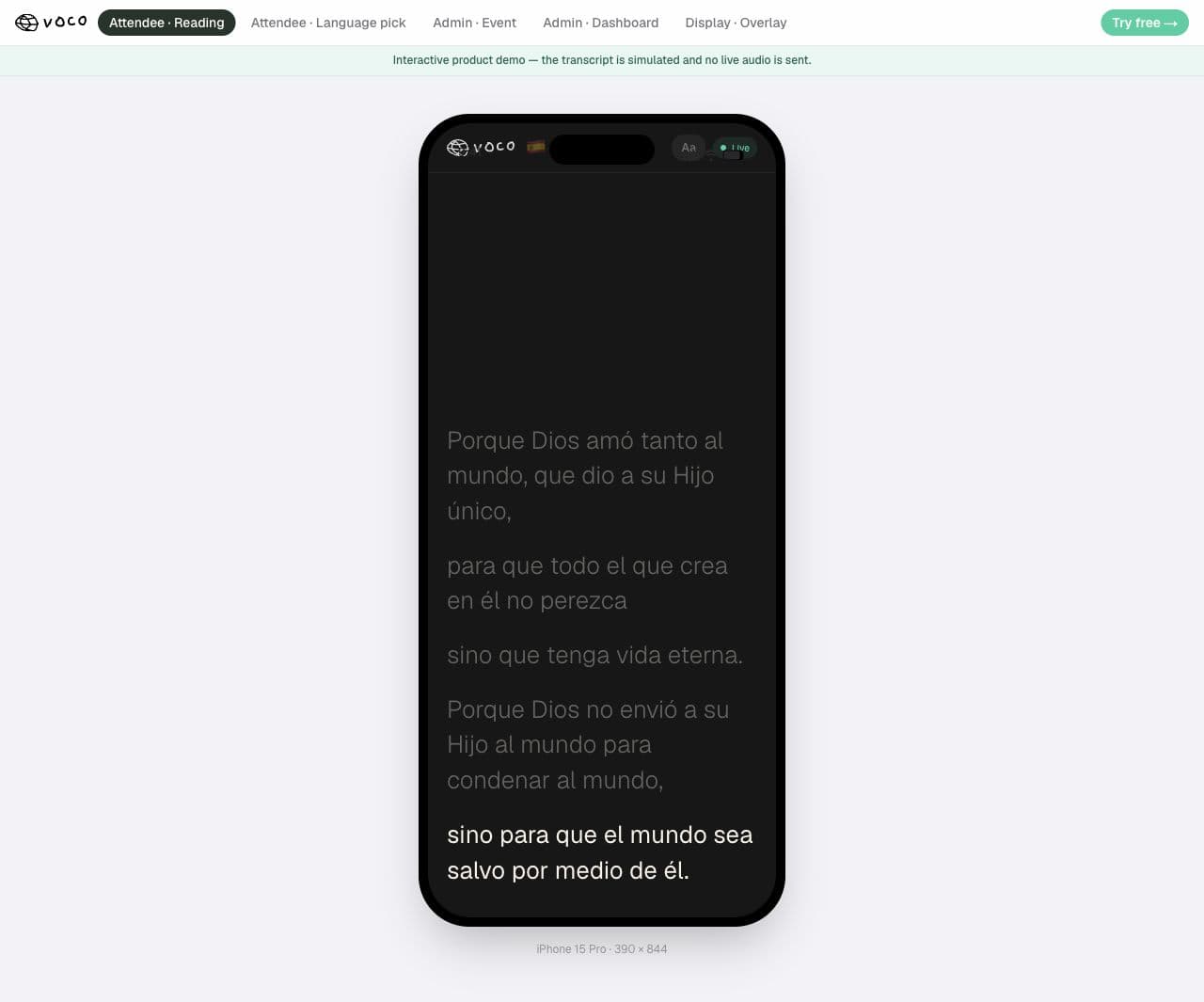
Real Voco screens · demonstration data
One Sunday workflow. Two simple views.
The church team starts and monitors translation from the real Voco dashboard. Attendees scan the permanent QR code and read the sermon in their chosen language—without an app or account.
Step 4 — Go live
Start the Voco session before the first important spoken moment rather than waiting until the sermon begins. The system transcribes and translates in real time, sending short translated segments to connected readers throughout the service. Keep one test phone open in a priority language so the operator can see whether text is still arriving. The aim is light-touch monitoring, not asking a volunteer to stare at the dashboard for the whole service.
Step 5 — On-screen captions (optional)
If you want translation captions displayed on your projector or screen for the whole room, Voco's Church plan includes OBS and ProPresenter overlays. In OBS, add a Browser Source with the Voco overlay URL. In ProPresenter, add a Web Item. The captions update in real time as the service progresses.
What to tell your congregation
A simple announcement before the service goes a long way: 'We have live translation available in [languages] today. If you'd like to follow along in your language, scan the QR code on screen or pick up a printed card at the door.' Most first-time users are surprised by how natural it feels to follow along on their phone.
Rehearse the complete attendee journey
A good rehearsal starts at the church door, not at the audio desk. Ask someone who has not used Voco before to find the QR code, scan it from a realistic seat, choose a language, enlarge the text, and follow several minutes of a recorded sermon. Test iPhone and Android, weak WiFi, right-to-left text if relevant, and the projector view. Then test the operator journey: selecting the correct microphone, starting the session, checking one translated line, and recovering from a disconnected cable or browser refresh.
- 1Run ten minutes of real sermon audioShort test phrases hide problems with pace, scripture references, stories, names, and sustained background noise.
- 2Review meaning with a fluent readerAsk what was unclear or pastorally awkward, not only whether the words were technically translated.
- 3Pin recurring vocabularyAdd the pastor's name, church name, series title, theological terms, and local place names to the glossary.
- 4Practise one failureDisconnect the audio or network briefly so the volunteer knows what the recovery looks like before it happens live.
Plan for people who cannot or do not want to use a phone
A QR-code reader removes equipment for many people, but it is not universal. Some attendees do not carry smartphones, find small screens difficult, have limited data, or prefer not to use a phone during worship. Keep a proportionate alternative: a shared caption screen, a church-owned tablet, printed instructions with a short link, a hearing system, or a human interpreter where the need justifies it. Accessibility means offering a workable route, not insisting that everyone use the same one.
After the service — learn before adding more
Ask two or three people who used the reader what helped, what distracted them, and where they lost the thread. Review recurring transcription errors, update the glossary, and record any audio or WiFi issue for the AV team. Keep the workflow stable for several weeks before adding more display modes or languages. A simple setup that volunteers trust is more valuable than a complex setup that changes every Sunday.
- Record which languages were actually selected without trying to infer nationality
- Check whether people discovered the QR code without personal assistance
- Review names, scripture references, and theological words that repeatedly caused confusion
- Thank the reviewers and tell them what you changed because of their feedback